- Root Causes: Headline not updating usually comes from browser caching, LinkedIn CDN sync delays, or visibility setting conflicts.
- Fast Fix Order: Start with a hard refresh, then log out and back in, then clear cache and cookies if the old headline still shows.
- Reality Check: Test in Incognito or on a different device to confirm whether the issue is local caching or LinkedIn-side delay.
- Save Fail Clue: If the edit field still shows the old headline, the change never saved, Re-apply and wait for the save confirmation.
- Last Resorts: Verify visibility settings, avoid repeated edits, and if it is correct in edit mode but wrong publicly, wait for sync or contact support.
When Your Headline Changes Disappear
You edited your headline, hit save, refreshed the page – and nothing changed. This frustrating issue with linkedin headline not updating affects thousands of users daily, stemming from browser caching, LinkedIn’s sync delays, or profile settings that block updates from propagating.
This guide walks through seven proven fixes, ordered from quickest to most comprehensive. Most issues resolve within the first three steps, but we’ll cover edge cases for persistent problems that require deeper intervention.
Why LinkedIn Headlines Fail to Update
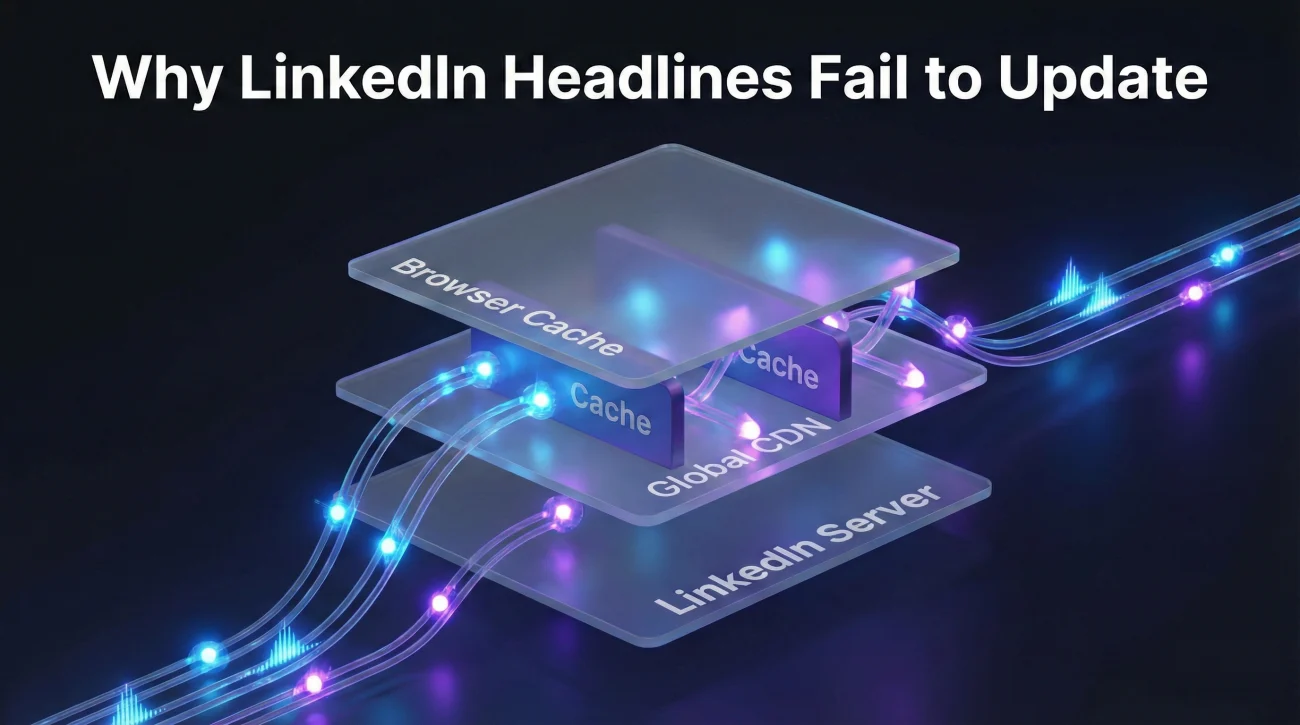
Understanding the technical reasons helps you choose the right fix faster. LinkedIn’s infrastructure involves multiple layers where your headline data gets stored and displayed.
Browser caching stores your old headline locally to speed up page loads. When you make changes, your browser might serve the cached version instead of fetching new data from LinkedIn’s servers. This is the most common cause and easiest to fix.
LinkedIn’s content delivery network replicates your profile across global servers. When you update your headline, the change needs to propagate to all these servers – a process that can take minutes or occasionally hours. During this sync period, viewers see different versions.
Profile visibility settings can interfere with updates if you’re using LinkedIn’s features incorrectly. These settings sometimes create conflicts that prevent headline changes from saving properly.
7 Fixes for Headlines That Won’t Update
Fix 1: Force a Hard Refresh
A hard refresh bypasses your browser cache and forces it to download fresh data from LinkedIn’s servers. This resolves the linkedin headline does not update issue in about 60% of cases.
On Windows or Linux, press Ctrl + Shift + R. On Mac, use Cmd + Shift + R. You’ll see the page reload, and if caching was the problem, your new headline should appear immediately. Check both your profile view and how your headline appears in search results – they might update at different rates.
Fix 2: Sign Out and Sign Back In
Logging out clears your session data and forces LinkedIn to fetch your current profile information when you log back in. This fix addresses session-level caching that a hard refresh doesn’t clear.
Click your profile icon in the top right, select “Sign Out,” wait 30 seconds, then log back in. Navigate directly to your profile and check if the headline appears correctly. If you still see the old version, proceed to the next fix before assuming the problem is on LinkedIn’s end.
Fix 3: Clear Browser Cache and Cookies
When hard refresh and logout fail, your browser has likely stored multiple versions of your profile data. Clearing cache and cookies removes all locally stored LinkedIn data, forcing a complete refresh.
In Chrome, go to Settings → Privacy and Security → Clear Browsing Data. Select “Cookies and other site data” and “Cached images and files,” choose “All time” as the time range, and clear data. For other browsers, the path is similar. After clearing, restart your browser completely before logging back into LinkedIn.
Warning: This will sign you out of all websites, not just LinkedIn. Make sure you know your passwords before proceeding.
Fix 4: Check on a Different Device or Browser
Testing on another device or browser tells you whether the problem is device-specific or actually on LinkedIn’s servers. If your new headline appears on your phone but not your computer, the issue is local caching. If it’s missing everywhere, LinkedIn’s sync is delayed.
Try viewing your profile in a private browsing window (Incognito in Chrome, Private in Safari). Private windows don’t use cached data, so they’ll show you the current version that LinkedIn’s servers are distributing. If the headline appears correctly in private mode but not in your regular browser, clearing cache will fix it.
Fix 5: Revert and Re-Apply Your Changes
Sometimes the update actually failed to save on LinkedIn’s end, even though it appeared to complete. LinkedIn’s interface doesn’t always show error messages when saves fail due to network interruptions or server timeouts.
Go to your profile edit mode and check if your “new” headline is actually saved there. If you see your old headline in the edit field, your changes never committed. Make the change again, but this time wait for the confirmation message before navigating away. Click outside the headline field to trigger the save, watch for the brief “Saving…” indicator, and don’t close the window until you see confirmation.
Fix 6: Verify Profile Visibility Settings
The update linkedin headline without notification feature can create conflicts if not used correctly. When you toggle between public and private modes while editing, LinkedIn sometimes fails to propagate the changes properly.
Go to Settings & Privacy → Visibility → Profile viewing options. Ensure your profile is set to “Public” if you want changes to appear immediately. If you recently changed from private to public, wait 2-4 hours for the visibility change to fully propagate before editing your headline. Making edits during this transition period often causes the update to fail silently.
Fix 7: Wait for LinkedIn’s Sync to Complete
If you’ve tried all previous fixes and your headline appears correctly in edit mode but not in public view, LinkedIn’s content delivery network is experiencing linkedin headline update delay on its end. This is rare but does happen during high-traffic periods or system maintenance.
LinkedIn’s typical sync time is 15-30 minutes, but delays can extend to 4-6 hours during platform issues. Check LinkedIn’s status page or search Twitter for “LinkedIn down” to see if others are reporting similar problems. There’s nothing you can do to speed this up – making repeated edits can actually make the problem worse by creating conflicting versions.
Preventing Future Update Problems
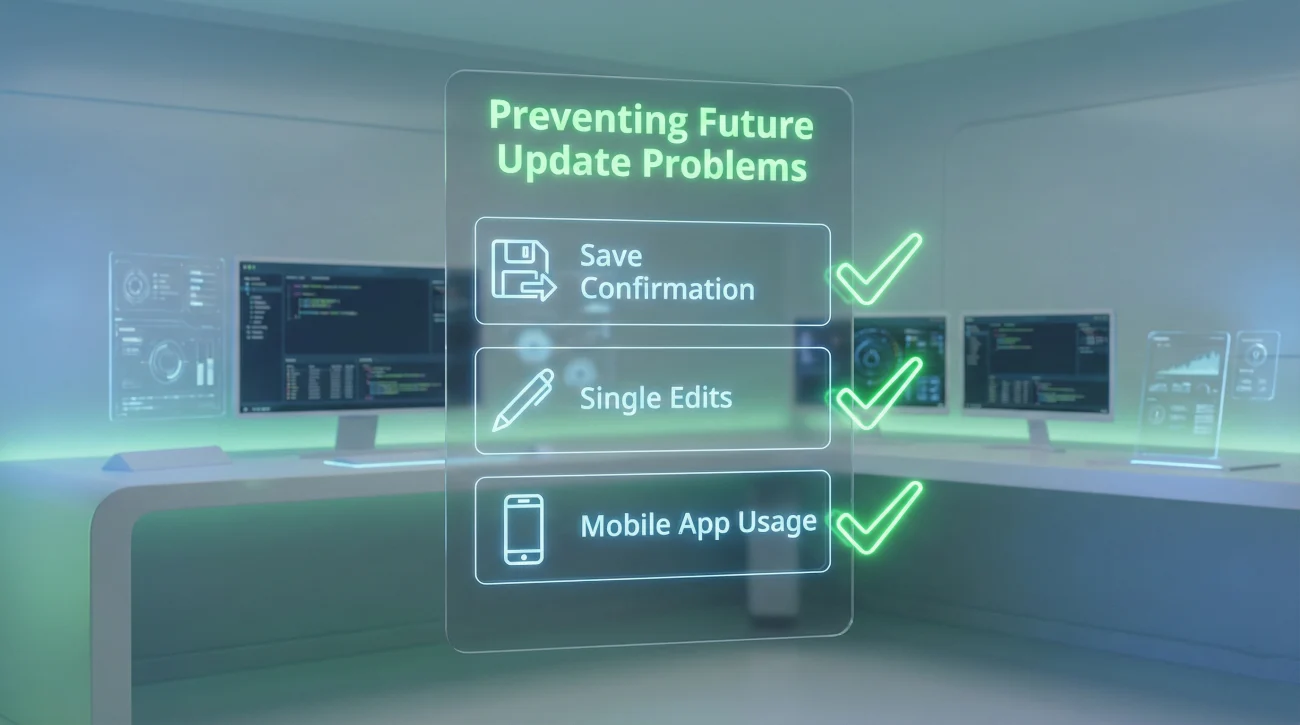
Once you’ve fixed your current issue, these practices help prevent the linkedin headline not changing problem from recurring.
Always wait for save confirmation before navigating away. LinkedIn’s auto-save is not instant – you need to see either a green checkmark or “Changes saved” message. Closing the edit window too quickly interrupts the save process, and your changes won’t commit even though they appeared to work.
Make one change at a time when updating multiple profile sections. Editing your headline, summary, and experience simultaneously can create race conditions where LinkedIn’s servers receive conflicting update requests. Space out your edits by at least 60 seconds to give each change time to save and sync.
Use LinkedIn’s mobile app for critical updates. The mobile app tends to have fewer caching issues than web browsers because it stores less local data. If you’ve had repeated problems with headline updates on desktop, try making changes through the mobile app instead.
Advanced Troubleshooting for Persistent Issues
When standard fixes fail and your headline still won’t update after 24 hours, these advanced steps address deeper technical problems.
Check your browser extensions. Ad blockers, privacy tools, and LinkedIn automation extensions can interfere with profile updates. Disable all extensions, restart your browser, and try updating your headline again. If it works, re-enable extensions one by one to identify the culprit.
Test your network connection. Corporate networks and VPNs sometimes block certain LinkedIn API calls that handle profile updates. If you’re on a work network, try updating from your mobile data connection instead. If that works, your company’s firewall is blocking the update requests.
Contact LinkedIn Support as a last resort. Go to Help → Contact Us and select “Profile & Settings” as your issue category. Include screenshots showing the correct headline in edit mode but the wrong headline in public view. LinkedIn’s support team can manually force a profile sync that bypasses the normal caching layers.
What to Do While Waiting for Updates
If you’ve confirmed the issue is on LinkedIn’s end, you can still control how recruiters see your profile during this period.
Your headline in connection requests updates faster than your public profile. Send connection requests with personalized notes – recipients will see your new headline in notifications even if your profile page shows the old version.
Focus on other profile sections while waiting. Update your About section, add recent accomplishments, or request recommendations. These changes often propagate faster and improve visibility regardless of the headline issue.
For comprehensive strategies on optimizing your entire LinkedIn presence, explore our guide to LinkedIn profile optimization.
❓ FAQ
⏰ How long does it typically take for LinkedIn headlines to update?
👥 Will my network see my old or new headline during the update delay?
📱 Why does my headline look different on mobile vs desktop?
🔄 Can I update my headline without notifying my connections?
🚨 What if my headline keeps reverting to the old version?
Final Thoughts

Most linkedin headline not updating issues resolve with a simple hard refresh or cache clear. Work through fixes systematically rather than repeatedly editing your headline – each unnecessary edit creates more sync work and can extend the delay.
Start with quick fixes before moving to advanced troubleshooting. If your headline appears correctly in edit mode but not in public view, the problem is propagation delay rather than a failed save. Understanding this difference saves hours of frustration.
Once your headline works correctly, maintain good update practices. Wait for save confirmations, space out edits, and use the mobile app when desktop gives you trouble.